Host server configuration
There are 3 prerequisites to run BackROLL app, which are the following:
Docker
Docker-compose
Git
The installer will automatically tell you if the installation conditions are complete or if any tools are missing or outdated.
All these packages can be easily installed with the APT tool.
Eg.
apt install docker docker-compose git
Database preparation
Database will be used to store some information, like hypervisors list, backup policies list, etc.
No password is stored in the database
You will need a Mysql/MariaDB database. This database can be hosted as another Docker image (eg. Installing and using MariaDB via docker)
You can also use your existing server / cluster if you have one.
Once your database has been created and your user has been giving access, keep information such as Database server IP address, port, username/password and database name as you will need to fill them in the BackROLL configuration file.
When BackROLL starts, the application will check if database has been initialized. If this is not the case, the tables will be automatically created. So no action is required on the database side once connection has been set up.
Backup storage configuration
Regardless of the choice of technology, the backup storage must be accessible from the server filesystem. The easiest choice is an NFS share mounted directly on the host server.
How to set up an NFS mount on Ubuntu 20.04
Note
As of version 0.1.0, two shares have to be set up in BackROLL. These two shares must be in the /mnt/ directory**
Example:
/mnt/share1
/mnt/share2
The ability to declare as many shares as desired is planned for a future version. Stay tuned !
Configuring the OpenID connector
We have chosen not to develop authentication in the BackROLL application.
Instead, authentication is deported to an IAM like keycloak, ADB2C, Okta, etc.
You will therefore have to configure an OpenID provider. As the procedure varies from one provider to another, we will only detail here the parameters common to all providers. You will need to create one or two client applications on your IAM. This choice varies on whether or not you use the UI.
These two client applications correspond to the API and the UI.
First, retrieve the “Issuer URI” from your provider. This URI will be used for both applications.
Then, for the API, you will need to create a confidential application. Once this is done, get the client ID and the secret client
Finally, if you want to use the UI, create a public application (no password) and keep the client ID
This information must be filled in the BackROLL configuration files (core and UI files)
Warning
It will be necessary to configure the “Valid Redirect URI” and the “Web Origin”. These values must match the URL at which your BackROLL appliance will be accessible.
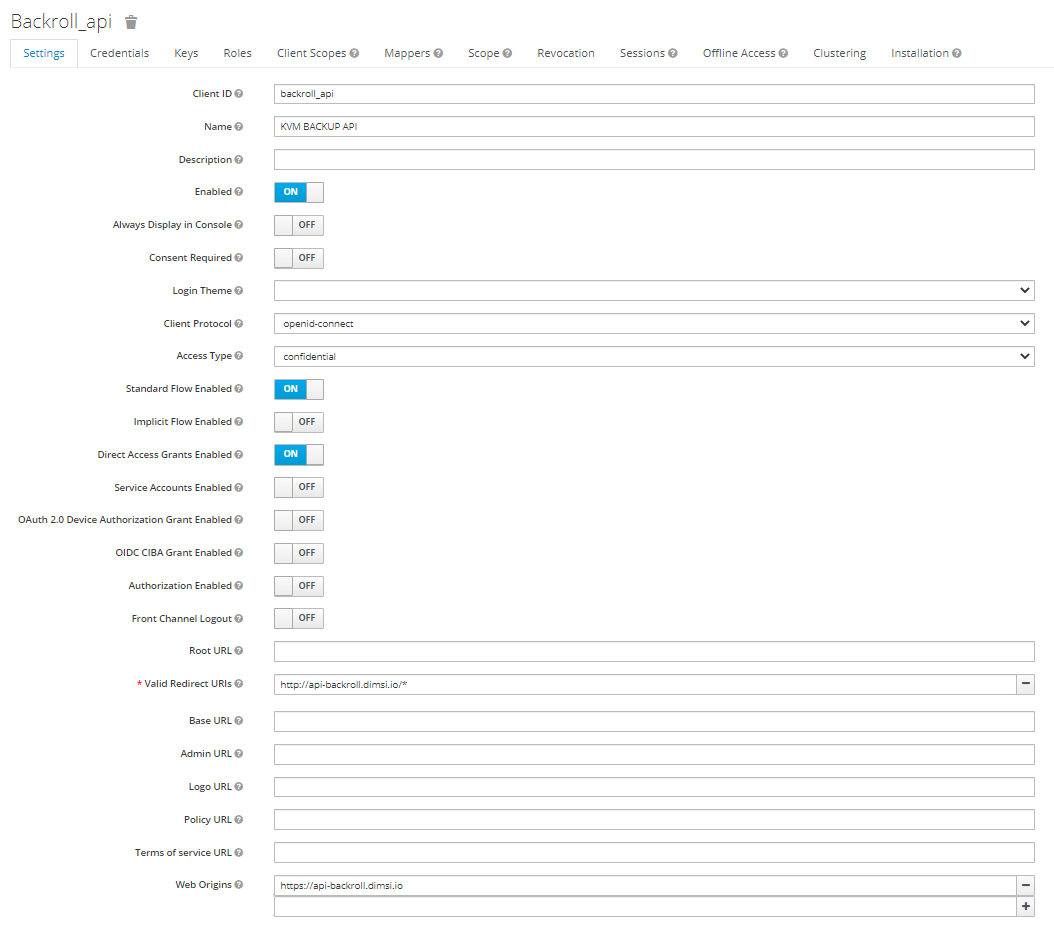
Remember to set these values every time you change the URL of your BackROLL appliance
Running the installer
The installation of BackROLL is straight forward. You just need to download the archive corresponding to the version you want to install.
wget https://github.com/DIMSI-IS/BackROLL/releases/download/v0.1.0/backroll-installer.tar.gz
Once downloaded, unzip its contents on the server that will host the application.
tar -xvf backroll-installer.tar.gz
You should find the following files:

Edit the following files with the values retrieved so far:
./common/config/core/env
./common/config/ui/env
The following picture shows the ./common/config/core/env file
### DATABASE CONFIGURATION [MANDATORY] ###
DB_IP=
DB_PORT=
DB_USER_NAME=
DB_USER_PASSWORD=
DB_BASE=

### FLOWER AUTH CONFIGURATION [OPTIONAL] ###
FLOWER_USER=
FLOWER_PASSWORD=

### CLOUDSTACK CONFIGURATION [OPTIONAL] ###
CS_ENDPOINT=
CS_USER_NAME=
CS_USER_PASSWORD=

### BACKUP NFS SHARE MOUNT REPOSITORY [MANDATORY] ###
CS_BACKUP_PATH=
MGMT_BACKUP_PATH=

### SLACK TOKEN [OPTIONAL] ###
#SLACK_TOKEN=

### OPENID [MANDATORY] ###
OPENID_ISSUER=
OPENID_CLIENTID=
OPENID_CLIENTSECRET=
The database-related parameters correspond to the connection information.
The parameters linked to Flower allow you to define an authentication to the WEB monitoring interface. We strongly advise you to set a login and password to Flower.
The parameters linked to CS correspond to the connection information to your Cloudstack environment. These parameters are optional and the use of Cloudstack is not mandatory.
The information related to NFS shares allows you to indicate the paths to the directories where the backups will be stored.
Finally, the parameters related to OpenID allow you to fill in the information obtained above when registering client applications with your IAM provider.
The same OpenID parameters can be found in the “./common/config/ui/env” file.
Once the information is filled in. Run the installation script with the following command:
./install.sh
And let yourself be guided. The installer will then retrieve the docker images used to install BackROLL.
Once the installation is complete, try to access BackROLL components:
Component |
HTTP Access URL |
API |
|
UI |
Securing endpoints
As you may have noticed, these endpoints are HTTP only.
You can put BackROLL behind a proxy/reverse-proxy to access it in HTTPS mode with domain resolution. This will allows you to do SSL Termination on the reverse-proxy side.
Don’t forget that you will have to change the URLs on your OpenID provider configuration !